
Introduction #
With version 6.4.7, the UltraMixer ID was introduced.
The UltraMixer ID is your personal user account for securely managing your UltraMixer license.
It enables easy activation, secure storage of your license key, and convenient use when switching devices.
Your existing license כמובן remains fully valid.
You can continue to test UltraMixer even without a license:
After logging in, you have the option to select the demo version and explore its features.
Why was the UltraMixer ID introduced? #
In recent years, many users have contacted us because:
- – license keys could no longer be found
- – email addresses had been changed
- – a new computer was set up
- – it was unclear where the license was stored
With the UltraMixer ID, your license is permanently linked to your account. This makes management much easier and more secure.
Registration of the UltraMixer ID #
Requirements
To register, you need:
– the email address used during purchase
– a password of your choice
Note: Use the email address you used to purchase an UltraMixer license.
Step-by-step registration #
Then download the latest UltraMixer version from our homepage and install it. After opening UltraMixer and clicking “Next” in the first window, you will be taken to the login. (The UltraMixer ID is available from UltraMixer 6.4.7.)
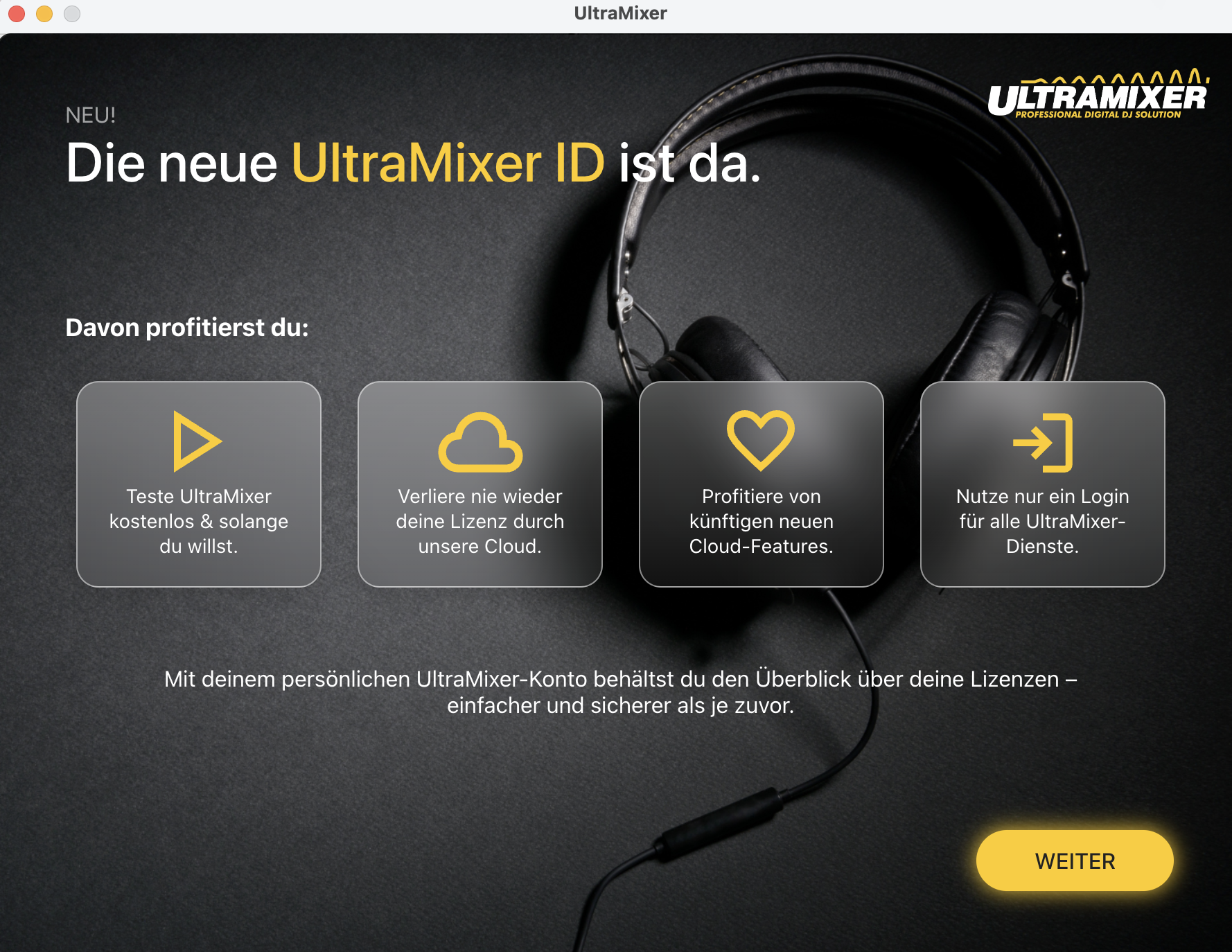
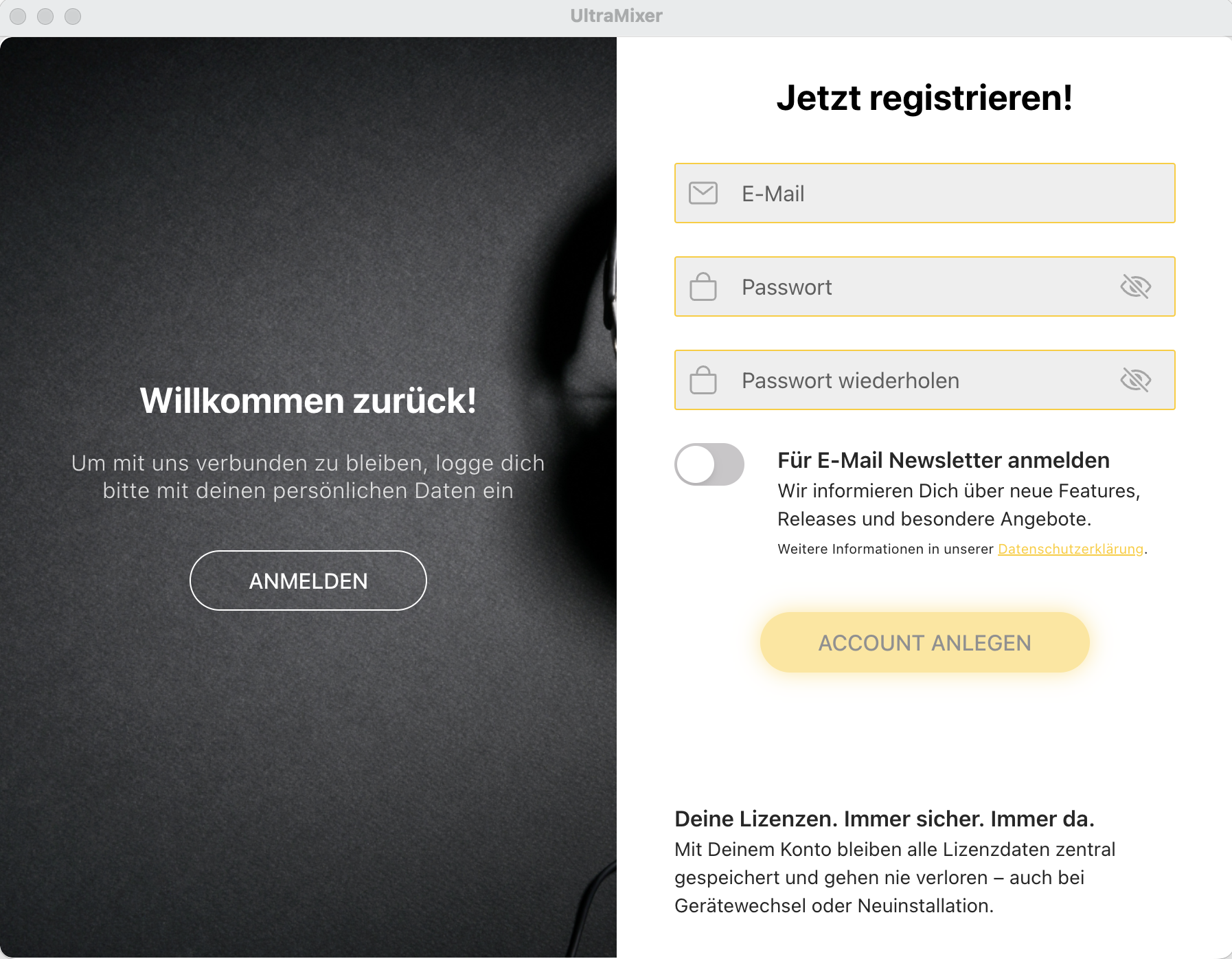
Registration in UltraMixer
Here you have two options: Log in or Register.
If you do not yet have an account, please select “Register”.
Enter email address
Now enter the email address you used to purchase UltraMixer.
Only then can your license be correctly assigned.
Set password
Then create your personal password.
It is best to choose a secure password and save it right away.
Complete registration
Confirm your entries to complete the registration.
Your account will be created automatically.
Good to know
Registration is only required once. You only need an internet connection for this step. After activating your license, you can use UltraMixer as usual without an internet connection.
Login #
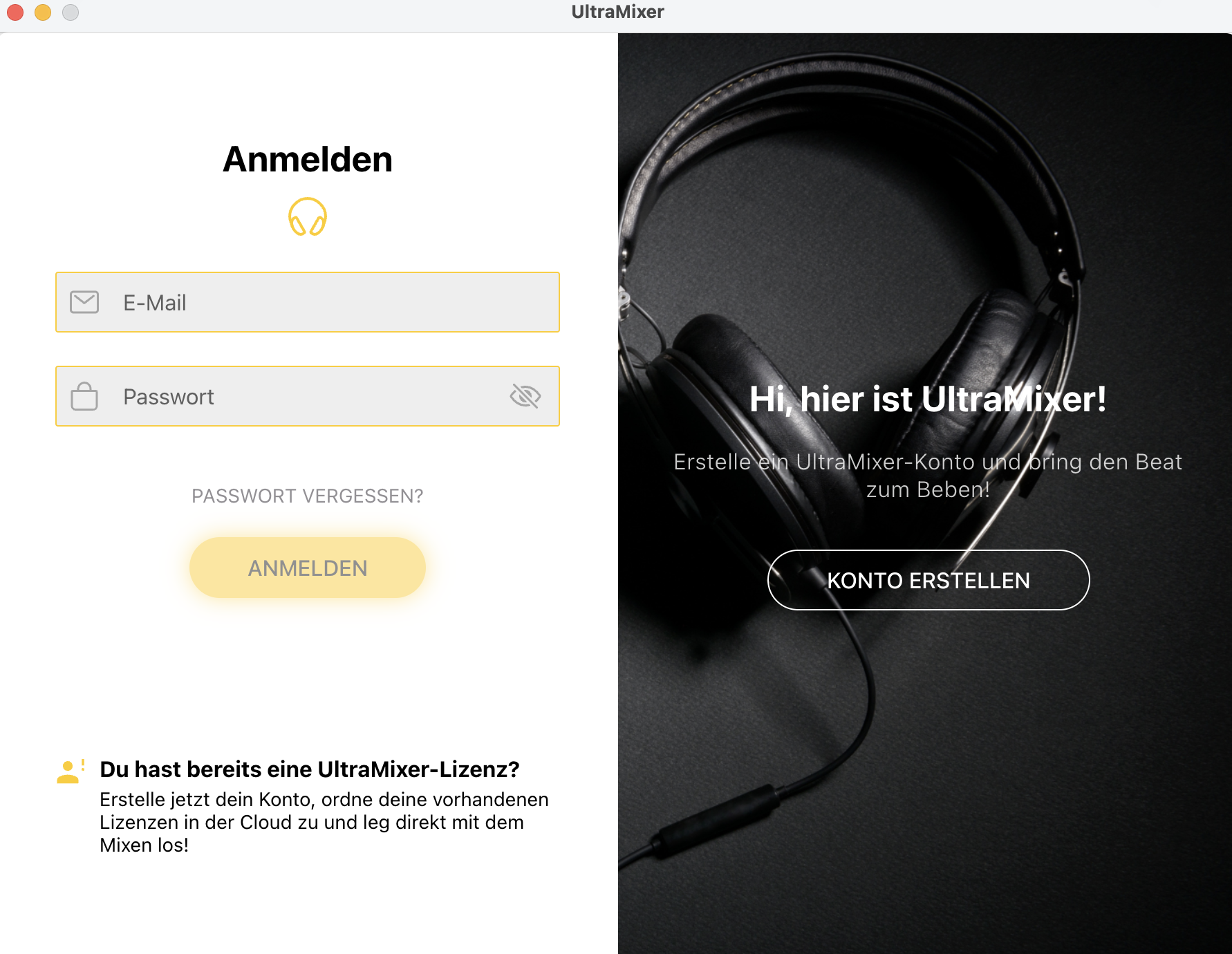
After successful registration, you will be automatically logged into UltraMixer.
The software remains activated on your computer, allowing you to use it normally without having to log in each time.
You only need to log in again if you:
- – reinstall UltraMixer
- – change your device
– want to change your license
ADD LICENSE #
In most cases, your license will be automatically added to your account when you register with the email address you used to purchase an UltraMixer license.
If your license is not displayed automatically, you can easily add it manually.
How to manually add a license #
Log in with your UltraMixer ID (email address + chosen password).
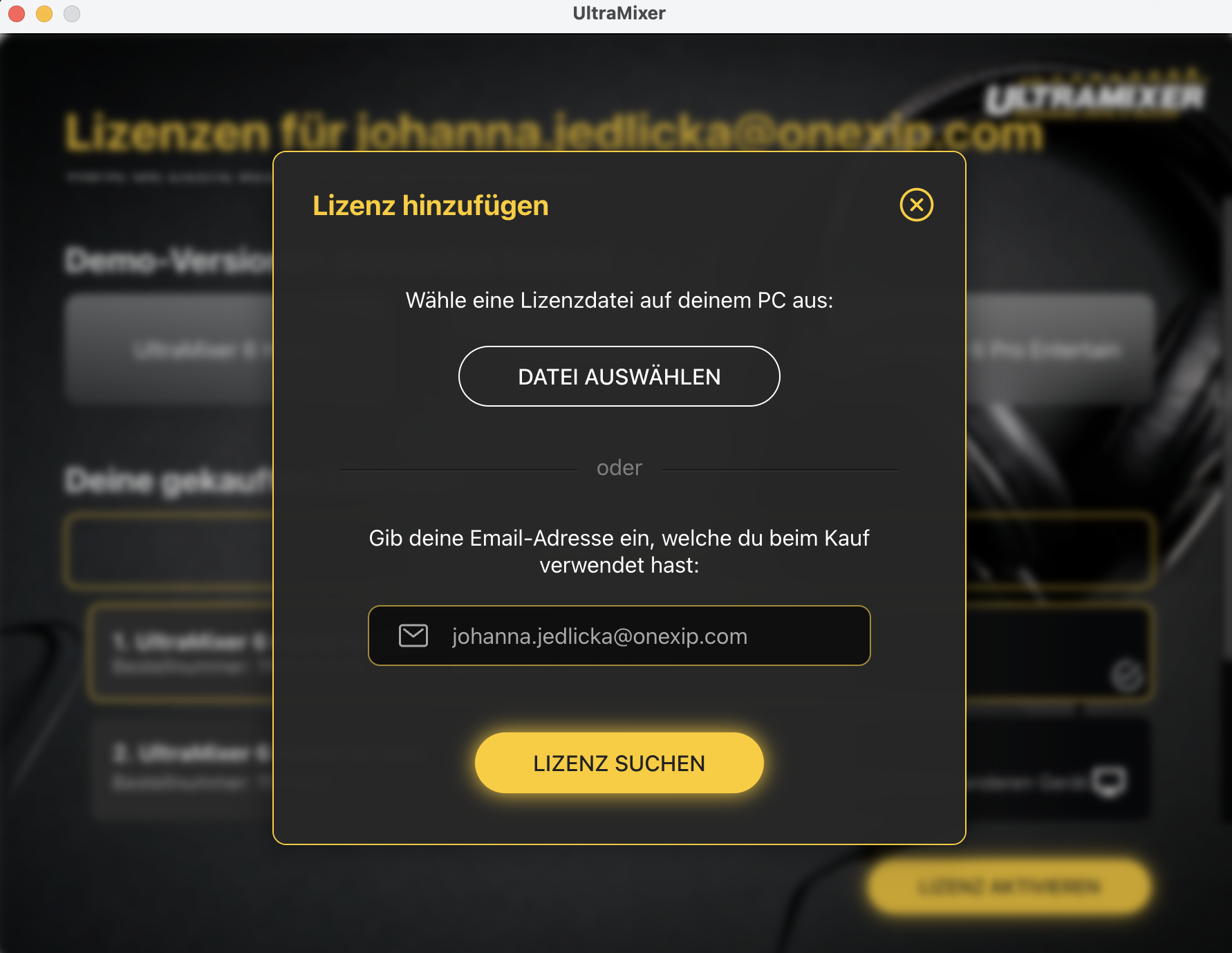
Click on “Add license”
If you have saved your license as a file:
-
1. Click on “Select file”
-
2. Choose the license key file on your computer
-
3. Confirm your selection
The license will then be added to your account.
Changing devices #
If you want to install UltraMixer on a new computer:
1. Install the latest version of UltraMixer
2. Log in with your UltraMixer ID
Each license can be activated on two devices at the same time.
Internet connection #
No permanent internet connection is required for normal use of UltraMixer.
An internet connection is only required for:
- – registration
- – login
- – activation
- – license transfer
Forgot password #
If you have forgotten your password:
- 1. Click on “Forgot password” in the login window
- 2. Enter your email address
3. Check your inbox. You should have received an email to reset your password. Also check your spam folder if you cannot find the email right away.


